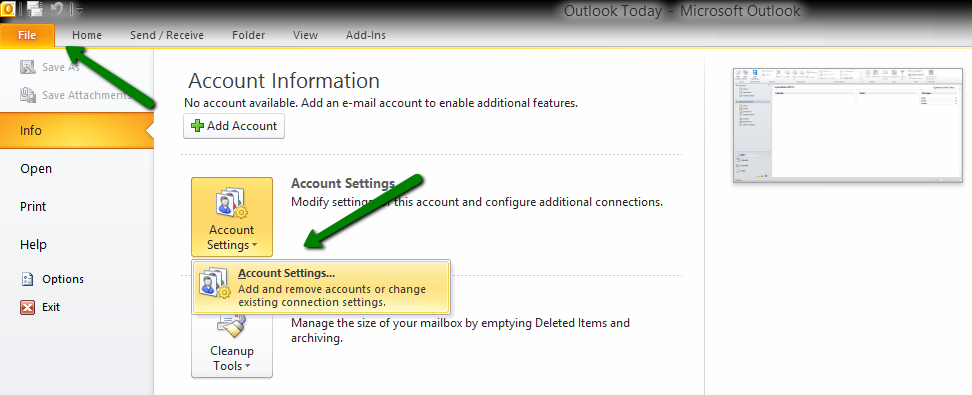
1. To create a new account in Outlook, first go to the tab File > Account Settings menu:
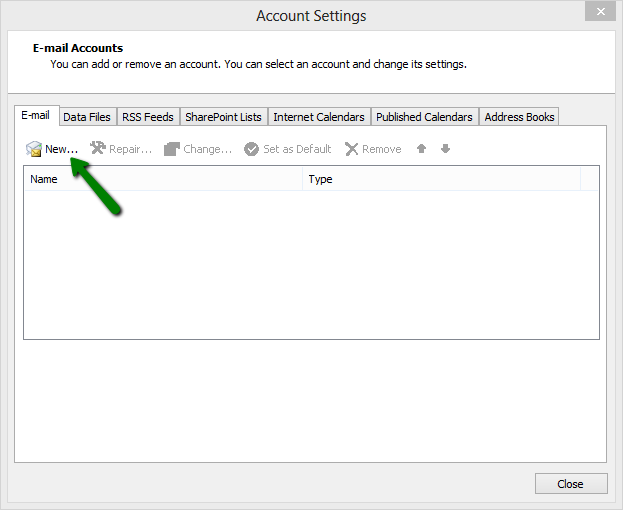
2. Click on New in the next window:
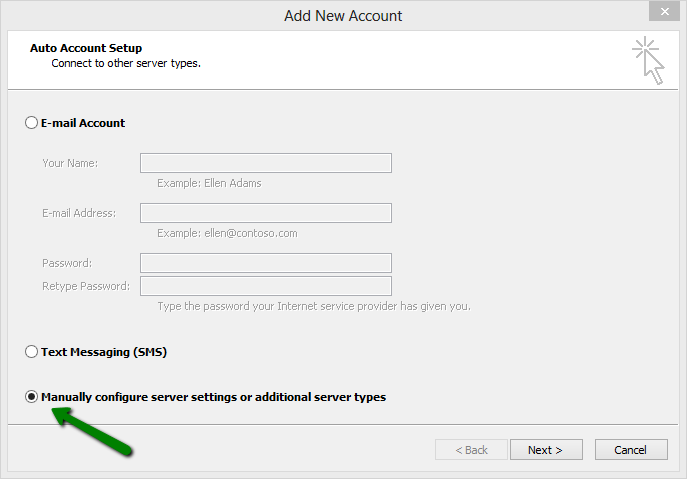
3. Choose the option Manually configure server settings or additional server types and click on Next:
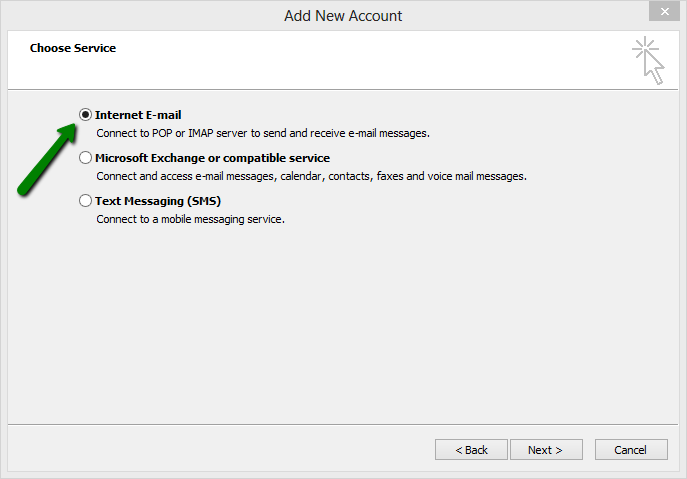
4. Choose Internet E-mail and click on Next:
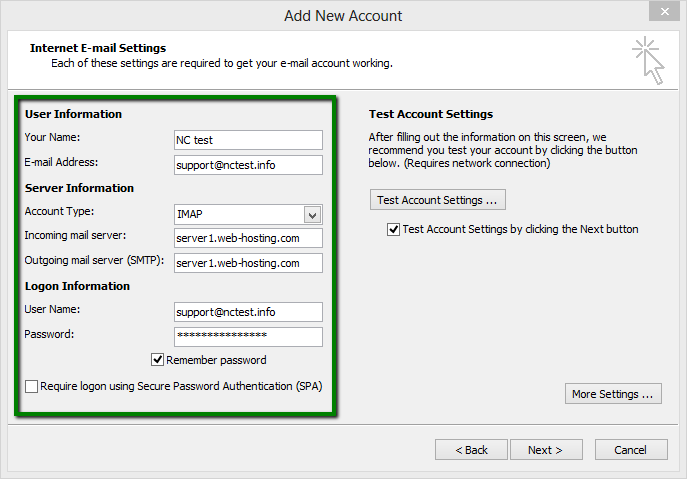
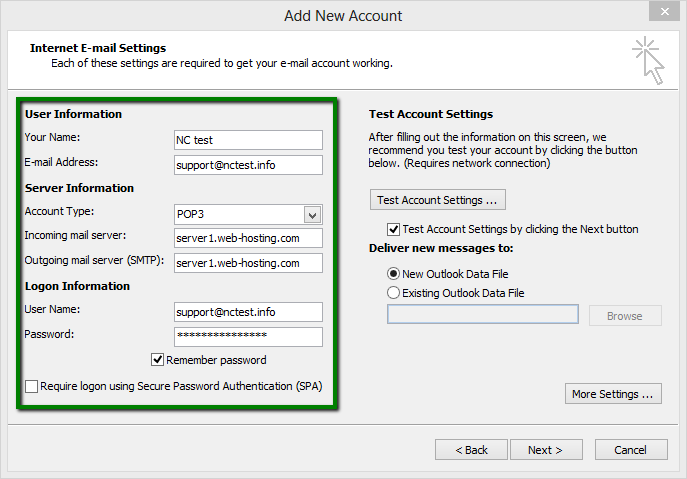
5. Enter the following settings in the corresponding fields:
Your Name: the name of your account in Outlook
E-mail Address: full email address
Account Type: select IMAP or POP3 from the drop-down menu
Incoming mail server: server your account is hosted on
Outgoing email server: server your account is hosted on
User Name: full email address
Password: password for this email account
Require logon using Secure Password Authentication (SPA): should be unchecked
or
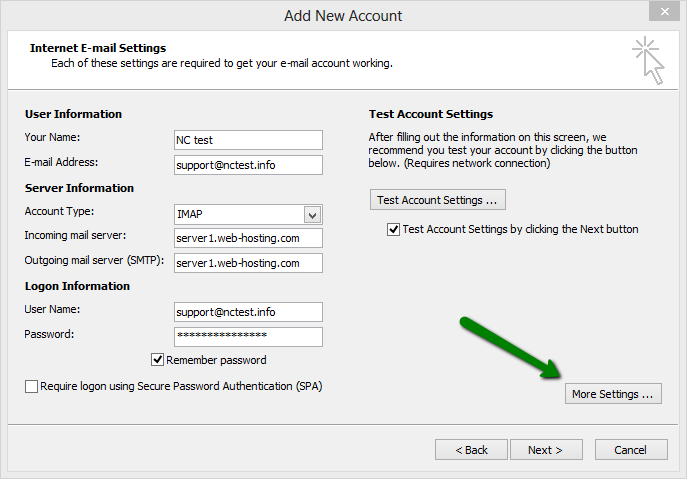
6. Click More Settings:
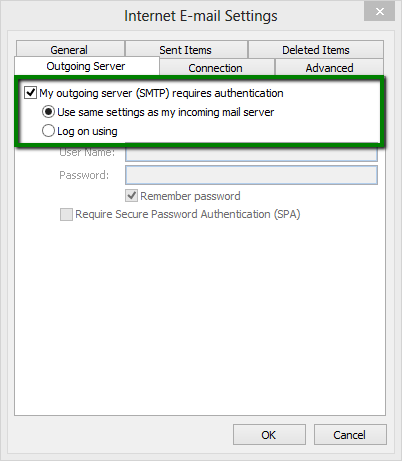
7. Go to the tab Outgoing Server and check-mark the option My outgoing server (SMTP) requires authentication:
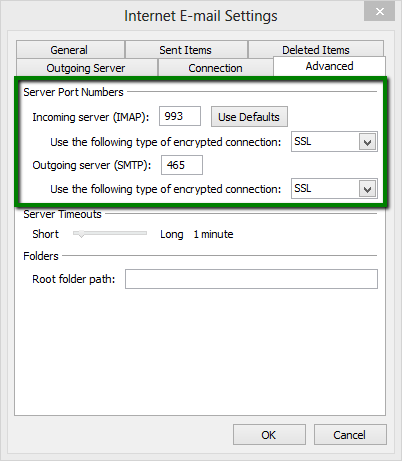
8. Now go to the tab Advanced and enter the following ports:
Incoming server (if are using IMAP): 993 port for SSL, 143 for TLS
Incoming server (if you are using POP3): 995 port for SSL, 110 for TLS
Outgoing server (SMTP): 465 port for SSL, 26/587 port for TLS
9. Click on Ok to return to the main window.
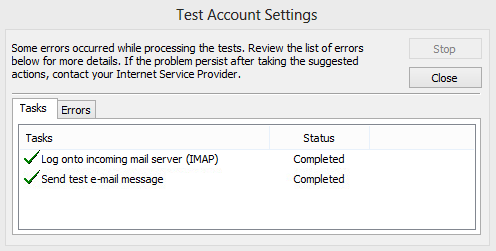
10. Click Test Account Settings to check if everything entered is correct.
If it is, you will see the statuses Completed:
11. If the test was successful, you can now click Close to get back to the previous window.
Then click on Next to finish the setup.
This is it!